

Azure
Azure Integration Setup Guide
Complete guide for integrating Azure with CyberOptix.
Prerequisites
- Azure CLI installed (Installation Guide)
- Global Administrator or Privileged Role Administrator access to Microsoft Entra ID
- Owner or User Access Administrator role on Azure subscriptions
Part 1: Create Azure Service Principal
Step 1: Retrieve Management Group ID
Get your root-level Management Group ID. Learn more about Azure Management Groups.
Alternative: Use a Subscription ID if you prefer subscription-level scope instead of management group scope.
Step 2: Create Service Principal with Required Roles
# Set your Management Group ID
MG_ID="your-management-group-id"

# Login to Azure
az login

# Create Service Principal with Reader role
SP_OUTPUT=$(az ad sp create-for-rbac \
  -n 'CyberOptix Integration' \
  --role reader \
  --scopes "/providers/Microsoft.Management/managementGroups/${MG_ID}" \
  --output json)

# Display credentials
echo $SP_OUTPUT | jq

# Extract Client ID
APP_ID=$(echo $SP_OUTPUT | jq -r '.appId')

# Add Storage Blob Data Reader role
az role assignment create \
  --assignee $APP_ID \
  --role "Storage Blob Data Reader" \
  --scope "/providers/Microsoft.Management/managementGroups/${MG_ID}"
For subscription-level access, replace the scope:
--scopes "/subscriptions/{subscription-id}"Step 3: Save Service Principal Credentials
From the output, save these values securely:
| Field | Description | Example |
|---|---|---|
appId | Client ID | 22d5376c-d430-45b0-8602-9b4f7bda45bf |
password | Client Secret | abc123...xyz |
tenant | Tenant ID | 286e1165-d2c4-4cc7-a73d-fd68cf040d61 |
Warning: The Client Secret is only displayed once. Store it securely.
Step 4: Verify Role Assignments
az role assignment list \
  --assignee $APP_ID \
  --scope "/providers/Microsoft.Management/managementGroups/${MG_ID}" \
  --output table
Confirm both Reader and Storage Blob Data Reader roles are listed.
Part 2: Configure Microsoft Graph API Permissions
Required for Microsoft Entra ID and Microsoft 365 log collection.
Step 1: Open App Registration
- Navigate to Azure Portal → Microsoft Entra ID → App registrations
- Search for and select CyberOptix Integration
Step 2: Add Microsoft Graph Permissions
- Select API permissions → + Add a permission
- Choose Microsoft Graph → Application permissions
- Add these permissions:
AuditLog.Read.AllIdentityRiskEvent.Read.AllSecurityEvents.Read.All
- Click Add permissions
Step 3: Grant Admin Consent
- Click Grant admin consent for [Your Organization]
- Click Yes to confirm
Critical: Without admin consent, log collection will not function.
Step 4: Verify Permissions
Confirm all three permissions show Granted status with a green checkmark in the Status column.
Part 3: Configure Azure DevOps Access
Required only if using the DevSecOps module.
Step 1: Add Azure DevOps API Permission
- In App registrations → CyberOptix Integration → API permissions
- Click + Add a permission → Azure DevOps
- Select Delegated permissions → Check user_impersonation
- Click Add permissions
- Click Grant admin consent for [Your Organization]
Step 2: Add Service Principal to Azure DevOps
- Navigate to
https://dev.azure.com/{your-organization} - Click Organization Settings (bottom left) → Users → Add users
- Enter the Service Principal Client ID from Part 1, Step 3
- Set Access level to Basic
- Click Add
Step 3: Grant Project Access
Option A - Specific Projects:
- Go to Organization Settings → Projects
- Select a project → Permissions tab
- Add the Service Principal to the Readers group
- Repeat for each project
Option B - All Projects:
- Go to Organization Settings → Permissions
- Add the Service Principal to the Project Collection Readers group
Part 4: Add Integration to CyberOptix
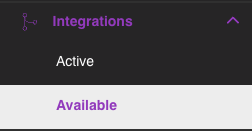
Step 1: Navigate to Integrations
- Log in to CyberOptix
- Navigate to Integrations → Available Integrations
Step 2: Create Azure Integration
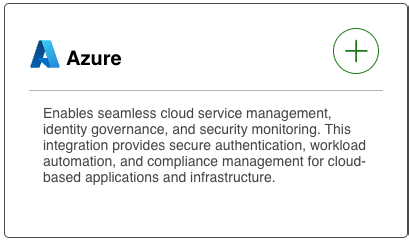
- Select Azure as the integration type
- Choose Cloud as the integration mode
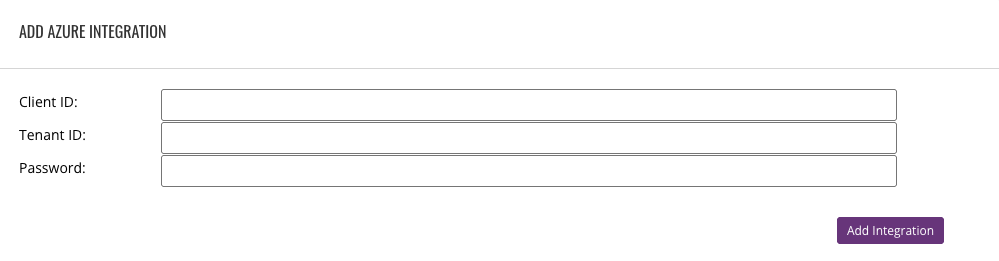
- Enter the credentials from Part 1, Step 3:
- Client ID: The
appIdvalue - Client Secret: The
passwordvalue - Tenant ID: The
tenantvalue
- Client ID: The
- Click Submit
Step 3: Verify Integration
The integration will appear in your Active Integrations list. CyberOptix will begin discovering Azure resources within a few minutes.
Permission Summary
Azure RBAC Roles
| Role | Scope | Purpose |
|---|---|---|
| Reader | Management Group or Subscription | Discover all Azure resources |
| Storage Blob Data Reader | Management Group or Subscription | Access storage containers and blobs |
Microsoft Graph API Permissions
| Permission | Type | Purpose |
|---|---|---|
| Directory.Read.All | Application | Read users, groups, group memberships, directory metadata |
| Application.Read.All | Application | Read app registrations + service principals + credentials |
| RoleManagement.Read.Directory | Application | Read directory roles + role assignments |
| Policy.Read.All | Application | Read conditional access policies |
| AuditLog.Read.All | Application | MFA registration details + sign-in logs |
| UserAuthenticationMethod.Read.All | Application | Read per-user authentication methods (MFA registration fallback scope) |
| IdentityRiskEvent.Read.All | Application | Identity protection risk detections |
| SecurityEvents.Read.All | Application | Microsoft 365 security alerts |
Azure DevOps Permissions (Optional)
| Permission | Type | Purpose |
|---|---|---|
| user_impersonation | Delegated | Access Azure DevOps APIs |
| Basic | Access Level | Minimum required for API access |
| Readers | Group | Read projects, repositories, branches |
Data Collection Overview
CyberOptix performs read-only operations on the following resources:
Azure Infrastructure:
- Virtual machines, networks, subnets, NICs, public IPs
- Storage accounts, blob containers, blobs
- Load balancers, application gateways, Azure Firewalls
- Databases (SQL, CosmosDB, PostgreSQL, MySQL)
- Container instances, AKS clusters
- App Services, Front Door CDN
Microsoft Entra ID & Microsoft 365:
- User sign-in and provisioning logs
- Directory audit logs
- Identity risk detections
- Microsoft 365 Defender security alerts
Azure DevOps:
- Projects, Git repositories, branches
Additional Resources
- Azure Service Principal Documentation
- Microsoft Graph Permissions Reference
- Azure DevOps Security Best Practices
Updated 4 months ago